
GA4 Tracks Downloads by Default — But It Misses the File Name. Here's How to Get the Full Picture.
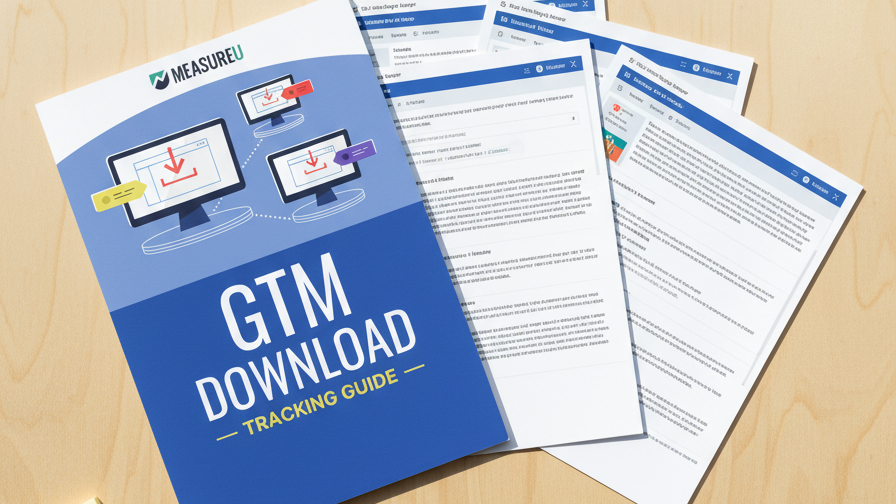
GA4's enhanced measurement fires a file_download event automatically. The problem? It doesn't tell you which file was downloaded. This guide walks you through building a custom GTM tracker that captures the file name, extension, and link URL for every single download on your site.
MeasureU is trusted by 50,000+ digital marketers
PDF download — delivered instantly. No spam, ever.
MeasureU Has Been Featured In



 Google Ads
 What's Inside
Built-In Tracking Audit
Part 1 walks you through verifying that GA4 enhanced measurement is enabled and shows you the event parameter table so you can see exactly what GA4 captures on its own.
Custom File Download Tracker
Part 2 takes you through 6 steps in GTM: create a File Name variable, a File Extension variable, a Link Click trigger, and a GA4 event tag that sends it all to your reports.
Screenshot at Every Step
Every GTM screen you need to touch is shown in a screenshot. No guessing which dropdown to click or which field to fill in.
Requires GA4 and GTM already set up. 12 pages, screenshot at every step.
GA4's enhanced measurement is a good start. It fires a file_download event whenever someone clicks a link ending in .pdf, .xlsx, .docx, or a handful of other extensions. But here's the gap: the default event tells you a file was downloaded, not which file.
If you have more than one downloadable file on your site — and most businesses do — you need the file name in your reports. This guide covers both sides: what GA4 gives you out of the box (Part 1) and how to build a custom tracker in GTM that fills in the missing details (Part 2).
- ✓ Not sure if enhanced measurement is even turned on? Part 1 shows you exactly where to check in GA4's admin panel and what the event parameter table should look like when it's working.
- ✓ Want the actual file name in your GA4 reports? Step 1 and Step 2 of Part 2 walk you through creating File Name and File Extension variables in GTM so every download event includes the specific file that was clicked.
- ✓ Worried about tracking the wrong clicks? Step 3 sets up a Link Click trigger filtered to only fire on actual file downloads — not every link on the page.
- ✓ Need to wire it all up to GA4? Step 4 creates the GA4 event tag that sends the file name, extension, and link URL as event parameters you can use in reports and explorations.
- ✓ How do you know it's working? Steps 5 and 6 cover testing in GTM's preview mode and publishing the container so your tracking goes live.
Instant access. No credit card.
Built by a Team That Lives in Google Tag Manager
Jeff Sauer has been working in digital analytics since 2005 and has trained 50,000+ marketers through MeasureU. This guide comes from the same GTM configurations his team deploys on client sites every week — tested across hundreds of GA4 properties.
Know exactly which files people download from your site — not just that a download happened
Download the guide, open GTM, and follow the 6 steps. Most people have it live in under 20 minutes.