
Install the Meta Pixel Through GTM — Version Control, Easier Debugging, and No Developer Needed
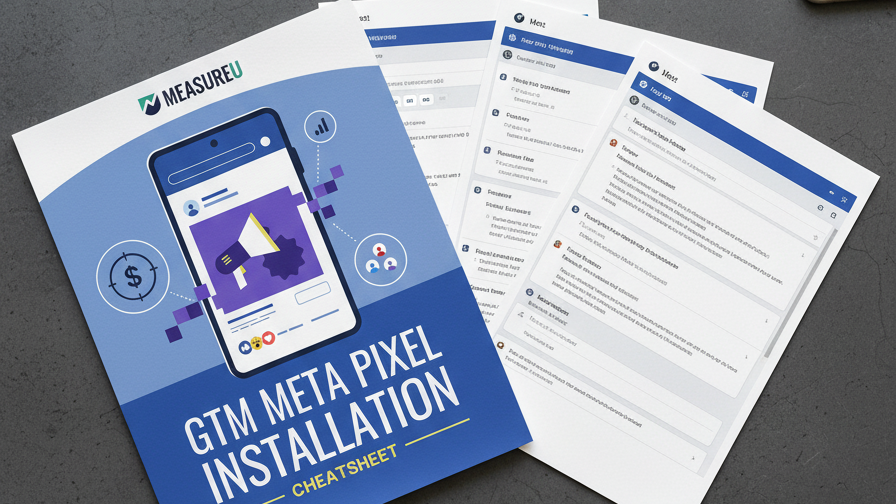
Adding the Meta Pixel directly to your site's code works, but it's fragile. Installing it through Google Tag Manager gives you version history, a clean debugging workflow, and the ability to update it without touching your site's code. This cheatsheet covers the 4-step process with two installation methods.
MeasureU is trusted by 50,000+ digital marketers
PDF download — delivered instantly. No spam, ever.
MeasureU Has Been Featured In



 Google Ads
 What's Inside
Get Your Pixel ID in 2 Minutes
Step 1 walks through Meta Events Manager — Connect Data Sources, select Web, and grab your Pixel ID. Screenshots of every screen.
Two Installation Methods
Method 1 uses the Community Gallery tag template (fastest). Method 2 uses Custom HTML (most flexible). Pick the one that fits your workflow.
Trigger, Test, and Publish
Set up the page view trigger, verify the Pixel fires in GTM preview mode, and publish your container. Four steps, done.
Requires GTM already set up. Two installation methods covered (template + custom HTML).
Meta's own documentation tells you to paste the Pixel code into your site's header. That works — until you need to update it, debug it, or figure out why conversions stopped tracking. Installing the Meta Pixel through GTM gives you version control, a preview mode for testing, and the ability to pause or update the tag without ever touching your website's code.
This cheatsheet covers the entire process in 4 steps: obtain your Pixel ID from Meta Events Manager, add the tag in GTM (with two methods to choose from), set up the page view trigger, and publish. Every step includes screenshots from both Meta and GTM.
- ✓ Where do you find your Meta Pixel ID? Step 1 walks through Meta Events Manager — Connect Data Sources, select Web, name your Pixel, and copy the ID. Screenshots show exactly where to click.
- ✓ Should you use the tag template or custom HTML? Step 2 covers both. Method 1 uses the Community Gallery template (three clicks, no code). Method 2 uses Custom HTML for teams that want full control over the snippet.
- ✓ What trigger should you use? Step 3 sets up the All Pages trigger so the Pixel fires on every page load — which is what Meta needs for baseline tracking.
- ✓ How do you confirm it's working? Step 4 covers testing in GTM preview mode, checking with the Meta Pixel Helper Chrome extension, and publishing the container.
- ✓ Running Meta ads and GA4 together? Pair this cheatsheet with our Meta Ads Checklist for a complete Meta advertising measurement setup.
Instant access. No credit card.
Built by a Team That Configures Tags Every Day
Jeff Sauer has been working in digital analytics since 2005 and has trained 50,000+ marketers through MeasureU. This cheatsheet comes from the same GTM workflow his team uses when setting up Meta Pixel tracking for new clients — whether they run $500 or $50,000 in monthly ad spend.
Get the Meta Pixel installed the right way — through GTM, with version control and easy debugging
Download the cheatsheet, open GTM, and follow the 4 steps. Most people have the Pixel live in under 10 minutes.