We ran a diagnostic quiz on our audience recently. Just a simple check—how's your Google Analytics 4 setup actually holding up?
And I expected some people to struggle.
I did not expect the majority to fail in the exact same spot.
Not a complicated spot either. Not some advanced configuration thing that only experts know about. Way earlier than that. Way more basic. And when I show you where, you're going to feel it a little.
Here's something I've noticed after 20 years of looking at GA4 setups on thousands of websites: almost everyone is worried about being five steps ahead. They want advanced attribution, AI integrations, custom dashboards—all of it.
And almost everyone has already failed at step one.
Which means right now—today—your GA4 is probably feeding you wrong numbers. Not slightly off. Silently, invisibly wrong. And you'd have no idea, because nothing breaks. No error message pops up. No warning. GA4 just keeps showing you data that looks completely normal.
That's actually the scary part.
So in this post I'm going to walk you through 5 signs that your setup is broken right now—most people have at least 3 of these—and I'll show you how to spot each one before it costs you.
And the good news? This is way easier to fix than you think.
Watch: The Full GA4 Diagnostic Breakdown
This post covers the same ground as the video above—so whether you prefer reading or watching, you'll get the full breakdown either way.
If you want the quick visual walkthrough, start with the video. If you want to dig into each sign at your own pace, keep reading below.
What You'll Learn in This Post
- GA4 doesn't crash when something goes wrong—it just keeps reporting silently corrupted data
- The difference between “installed” and “configured” is enormous (and most people stopped at installed)
- Cookie consent banners may be hiding 30-40% of your traffic without any warning
- Your “direct traffic” channel is probably a junk drawer of mislabeled campaigns
Table of Contents
- Why I'm Qualified to Diagnose This
- Sign #1: You Don't Trust Your Data
- Sign #2: You Never Actually Configured GA4
- Sign #3: Cookie Banners Broke Your Data (Consent Mode Issues)
- Sign #4: Your Channel Data Is a Mess (UTM Tracking Failures)
- Sign #5: You Never Verified It Was Actually Working
- Count Your Signs: What's Your Score?
- What to Do Next
Why I'm Qualified to Diagnose This
Before we get into the signs—I want to say something to you directly.
I'm Jeff Sauer. I've been teaching Google Analytics for 20 years. Looked at thousands of setups across every kind of business you can think of. Taught this in 20 countries. Had over 50,000 people go through my courses.
And the number one thing all of that has shown me?
The problem is never where you think it is.
People come to me stressed about being behind. “Jeff, I'm not doing advanced attribution yet.” “Jeff, I don't understand the new reporting interface.” And what I end up telling them—almost every time—is that stuff doesn't matter. Not yet. Because when I actually look at their GA4, they've been failing at something way more basic. Usually for a long time.

And that's not a personal failure. That's just how GA4 works. It doesn't crash when something goes wrong. It doesn't send you an alert. It just keeps reporting. Numbers keep flowing. Charts keep updating. Everything looks completely normal.
Which is exactly why this stuff goes unnoticed for months. Sometimes years.
So here are the 5 signs. And as we go through them, I want you to count how many apply to your setup right now. Be honest with yourself—because knowing is actually the whole point.
Sign #1: You Don't Trust Your Data
You open GA4, you look at your numbers, and somewhere in the back of your head a little voice goes… “I'm not sure that's right.”
Maybe your GA4 says one thing and your ad platform says something totally different. Maybe your email tool reports a number that doesn't match anything else. Maybe you asked your developer what the numbers mean and they gave you a five-minute explanation that left you more confused than before.
So you did what most people do.
You stopped looking.
Not officially. You didn't decide to ignore your analytics. You just… check it less. You trust it less. And when someone asks you “how's the site performing?” you give a vague answer because you genuinely don't know if the number you'd quote is accurate.
Here's what I want you to hear on that: that feeling is data. That gut feeling that something's off? It almost always means something IS off.

The version of this I see most often is when somebody else set up GA4 for you. An agency, a developer, a previous employee. They installed it, they said “you're good,” and you took their word for it. Which is completely reasonable.
Except that “installed” and “configured correctly” are two very different things—and we'll get into that with the next sign.
But for right now, just flag it. If you don't trust your data, if you avoid looking at it, if the numbers feel wrong—that's sign number one. And it's more common than you think.
The good news is it's not a personal failure. It's a setup problem. And setup problems have fixes.
Sign #2: You Never Actually Configured GA4
You have a GA4 tag on your site. You can see data coming in. You figured that meant you were done.
And I get it—that's how the old version worked. You installed Universal Analytics, it collected data, you were up and running. GA4 looks the same on the surface. Data's flowing, reports are there, everything seems fine.
But here's what Google quietly changed when they built GA4.
The old version was useful the moment you installed it. GA4 is not.
GA4 is more like… it's the most powerful free analytics tool ever built for marketers, but it ships without the engine installed. You have to put the engine in yourself. And if nobody told you that—which most people weren't told—you've been driving a car with no engine this whole time, wondering why it feels slow.

What I mean by configuration, in plain English:
- Telling GA4 what a conversion actually is for your business
- Turning on the right data settings
- Making sure it's measuring the right events
- Connecting it to your ad accounts
None of this happens automatically. None of it.
And the gap between “installed” and “configured” is enormous. Like, the difference between seeing how many people visited your site versus knowing which traffic source is actually driving sales. That's what configuration unlocks.
Here's the other thing—a lot of people learned GA4 when it first came out and set it up then. And if that's you, there's a decent chance your configuration is based on how GA4 worked two or three years ago. Google has updated it a lot since then. What was best practice back then isn't necessarily best practice now.
So if you installed GA4, saw data, and called it done—that's sign number two. And again, not your fault. Nobody handed you an instruction manual that said “hey, this one needs actual setup.” But now you know.
Sign #3: Cookie Banners Broke Your Data (Consent Mode Issues)
And this one I want you to pay extra attention to because this is the one that gets people who are doing everything else right.
At some point over the last few years, you added a cookie banner to your website. Maybe a lawyer told you to. Maybe you saw other sites doing it. Maybe a plugin just showed up and you clicked “install” because it seemed like the right thing to do.
And it was the right thing to do. Legally.
But here's what that cookie banner did to your analytics that nobody warned you about.
When a visitor hits your site and clicks “reject” or just ignores the banner, your GA4 tag doesn't fire. No data collected. That person is invisible to you. Which sounds reasonable in theory—they said no, so you don't track them. Fine.
Except when 30 or 40 percent of your visitors are doing that, and you have no idea, your data isn't slightly off. It's missing a massive chunk of real people.
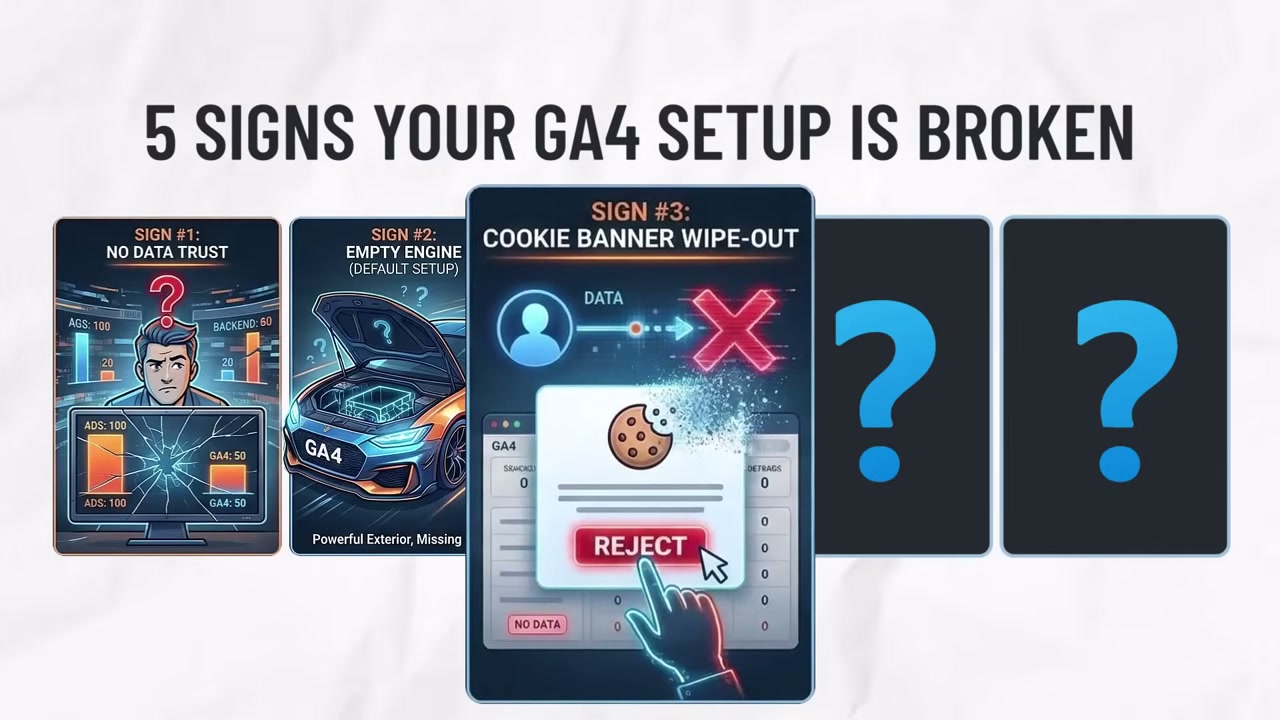
And the numbers that ARE coming in look completely normal. No gap. No warning. GA4 has no way to tell you “hey, by the way, you're only seeing 60 percent of your traffic.”
That's where consent mode comes in.
And I know that sounds technical but stay with me for one second because the plain-English version is actually pretty simple.
Consent mode is basically a way to tell GA4: “Hey, this person didn't give permission to be fully tracked—but I still want you to make a best guess about what they probably did, based on the people who DID give permission.”
It fills in the gaps. It doesn't track individuals who said no. But it keeps your overall picture accurate.
And without it turned on, you're not just missing data—you're making decisions based on a distorted version of reality.
Most sites we look at either have consent mode turned off completely or have it set up in a way that doesn't actually work. And the people running those sites have no idea, because nothing looks broken.
Sign #4: Your Channel Data Is a Mess (UTM Tracking Failures)
Pull up your GA4 right now—or just picture it in your head—and look at your traffic sources.
There's a pretty good chance you see something like: organic search, paid search, email, social… and then this big chunk called “direct.”
And direct traffic sounds like it means people typed your URL straight into their browser. Old fans, loyal customers, people who know you. Which is flattering.
Except that's not what direct actually means in GA4.
Direct traffic is what GA4 calls it when it has no idea where someone came from.
It's the catch-all. The junk drawer. Every visitor GA4 can't identify gets thrown in there. Which means if you have a lot of direct traffic—and most sites do—you're not looking at a channel. You're looking at a mystery pile.

And you can't make good marketing decisions based on a mystery pile.
Here's how this happens. Let's say you send an email to your list with a link to a blog post. Someone clicks it. GA4 should say “email traffic.” But if that link doesn't have what's called a UTM tag on it—just a little bit of extra text added to the URL that tells GA4 where the click came from—GA4 has no idea. So it calls it direct.
Your email campaign just became invisible.
Same thing happens with:
- Social posts
- Links in PDFs
- Links shared in Slack
- Text messages
- Any app that strips tracking information
All of it becomes direct.
And UTM tracking isn't complicated. It's one of the simpler things in all of digital marketing. You add a few extra parameters to your links and suddenly GA4 knows exactly where every click came from.
But if nobody set up a system for doing that—or if the agency running your ads is tagging their stuff but nobody's tagging anything else—you end up with this distorted picture where one channel looks enormous and everything else looks small.
The other piece of this is attribution. Which sounds like a scary word but really just means: when someone buys something, which marketing touchpoint gets the credit?
GA4 has opinions about this. Strong opinions. And if you haven't thought about how attribution is configured, GA4 might be giving all the credit to the last thing someone clicked—which makes your email look useless and your paid ads look like geniuses.
Which might not be accurate at all.
So if your channel breakdown looks weird, if direct is suspiciously large, if you're not consistently tagging your links—sign number four. Very fixable. But you have to know it's broken first.
Sign #5: You Never Verified It Was Actually Working
GA4 got set up. Data started flowing. And then nobody checked whether it was actually working correctly.
Not once. Not ever.
Which sounds obvious when you say it out loud. But think about how most tools work. You set up your email software, it sends emails, you know it's working because the emails arrive. You set up your payment processor, money comes in, you know it's working. There's a natural feedback loop.
GA4 doesn't have that.
It collects data in the background and reports it back to you. But if something goes wrong—a site redesign breaks the tag, a developer accidentally removes the tracking code during an update, a new page gets launched without GA4 on it—nothing alerts you.
The data just quietly gets worse. Or disappears entirely for certain pages. And you keep looking at reports that feel normal because you don't know what normal is supposed to look like.
Here's a real thing that happens more than you'd think.
A site goes through a redesign. The new site launches. The developer forgets to put GA4 back on the checkout page. Or the thank you page. Or both.
So now GA4 is counting people who started checkout but it can't see any completions. Your conversion rate looks like it fell off a cliff. And for months—sometimes longer—the business thinks something is wrong with their offer or their traffic or their pricing.
When actually the data collection just broke on the most important page on the whole site.
I've seen this happen to businesses doing millions of dollars in revenue. Companies with full marketing teams. People who are absolutely not amateurs at this.
Because nobody had a verification process. Nobody was checking.

The fix is just having a regular audit. A few times a year, someone goes through GA4 and checks that the key things are still working:
- Conversions firing
- Pages tracked
- Events recording correctly
It takes a couple hours if you know what to look for. And it saves you from making six months of bad decisions based on broken data.
If you've never done this—if GA4 got set up and you've basically trusted it ever since without verifying—that's sign number five.
Count Your Signs: What's Your Score?
So. Five signs. I told you at the start to keep count.
How many applied to you?
If you got one or two—honestly you're in better shape than most people I talk to. Go fix those specific things and you'll be ahead of the curve.
If you got three or more—and I want to say this clearly—this is not a reflection of how smart you are or how good you are at marketing. GA4 is just hard to get right. Google built something extremely powerful and then made it extremely easy to think you'd set it up correctly when you hadn't.
That's a product design problem, not a you problem.
But here's the thing that actually matters.
Every one of these five signs is fixable. None of them require you to start over or become a GA4 expert.
What they require is knowing what to look for and having someone walk you through it once. That's it.
What to Do Next
Ready to find out exactly what's broken in your setup?
Step 1: Go through the 5 signs above and honestly assess which ones apply to you.
Step 2: If you've got 3 or more (most people do), you need someone to look at your actual setup directly.
That's where our Tracking X-Ray comes in. It's a live diagnostic session where our team goes through your actual GA4 setup and checks all of this for you. No guessing. No wondering. Just clarity on what's broken and what to fix first.