
Your GA4 Reports Already Have AI Traffic. You Just Can't See It Yet.
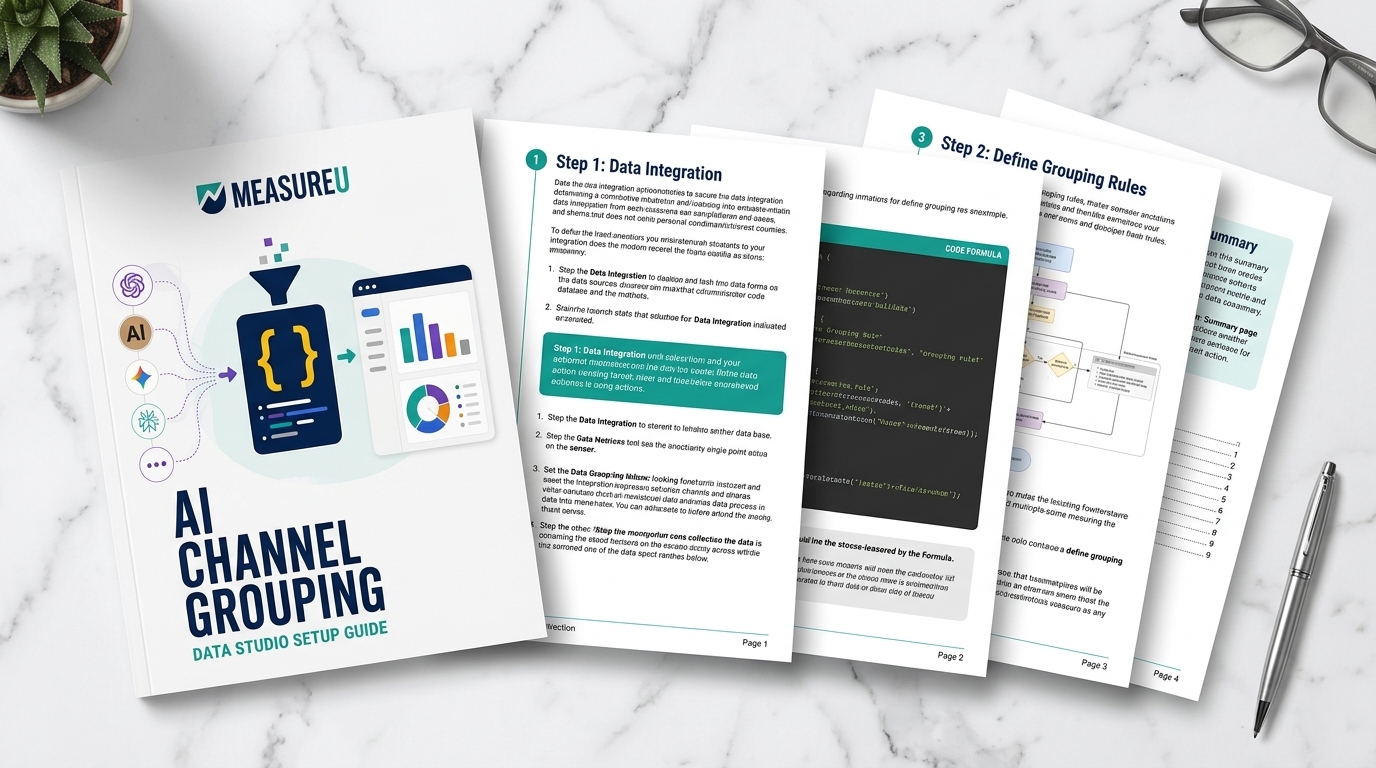
ChatGPT, Claude, Perplexity, Gemini, Copilot — they're all sending visitors to your site. But Data Studio buries them inside Direct, Referral, and Organic Search. This guide gives you a single CASE statement that pulls AI traffic out into its own channel grouping, so it shows up as a row in every report you build.
MeasureU is trusted by 50,000+ digital marketers
PDF download — delivered instantly. No spam, ever.
MeasureU Has Been Featured In



 Google Ads
 What's Inside
One Formula, 60+ AI Sources
A single REGEXP_MATCH CASE statement that checks session source against ChatGPT, Claude, Perplexity, Gemini, Copilot, DeepSeek, Grok, and dozens more. Copy, paste, done.
6 Steps from Start to Reporting
Open your data source, create a calculated field, paste the formula, save, add to a chart. The guide walks every click with exact field names and troubleshooting tips.
Plugs Into the Channel Performance Snapshot
The calculated field name matches the free Channel Performance Snapshot template exactly. Connect your data source and AI Traffic appears automatically.
Built for marketers and analysts who use GA4 + Data Studio. Works with any website.
GA4's default channel groupings were built for a pre-AI world. Traffic from ChatGPT lands in "Referral." Perplexity sometimes shows up in "Organic Search." Claude referrals get mixed into "Direct" depending on how the link was shared. And Copilot traffic? It arrives through bing.com, so it looks exactly like regular search.
This guide gives you a calculated field that catches all of it. The CASE statement checks the session source against a regex pattern covering 60+ AI domains, and anything that matches gets grouped under "AI Traffic." Everything else falls through to the default channel grouping — your existing reports don't change at all.
- ✓ Where is all the AI traffic hiding? The regex covers chatgpt.com, claude.ai, perplexity.ai, gemini.google.com, copilot.microsoft.com, deepseek.com, grok.com, meta.ai, and 50+ others. If it sends referral traffic, it's in the formula.
- ✓ Will this mess up my existing reports? No. The ELSE clause falls through to "Session default channel group" — every other channel (Direct, Organic, Email, Social) stays exactly as it was.
- ✓ How long does this actually take? Five minutes if you copy-paste the formula from the guide. The field lives on your data source, so every Data Studio report connected to that GA4 property gets it automatically.
- ✓ What if Data Studio throws an error? Page 3 has a troubleshooting section covering the four most common issues — curly quotes from rich-text editors, missing END statement, wrong field name capitalization, and unbalanced parentheses.
- ✓ What about the Channel Performance Snapshot template? Step 6 walks through connecting your data source to the free template. The field name matches what the template expects, so AI Traffic shows up alongside Direct, Organic, Email, and Social with zero configuration.
Instant access. No credit card.
Built by a Team That Tracks AI Traffic Every Day
Jeff Sauer has been teaching measurement marketing since 2014 and has trained 50,000+ digital marketers through MeasureU. This formula comes from the same AI traffic analysis his team runs across client GA4 properties — the same one behind the AI Traffic Guide that mapped 52 AI referral sources.
AI traffic is already in your GA4 data. This formula makes it visible.
Download the guide, paste the CASE statement into your data source, and watch a new "AI Traffic" row appear in your Data Studio reports. Takes about five minutes.