Installing server-side tracking for yourself has a mass failure rate.
If you tried to set up Google Tag Manager server-side right now, you'd fail. Not because you're not smart enough. Not because server-side tracking is too complicated.
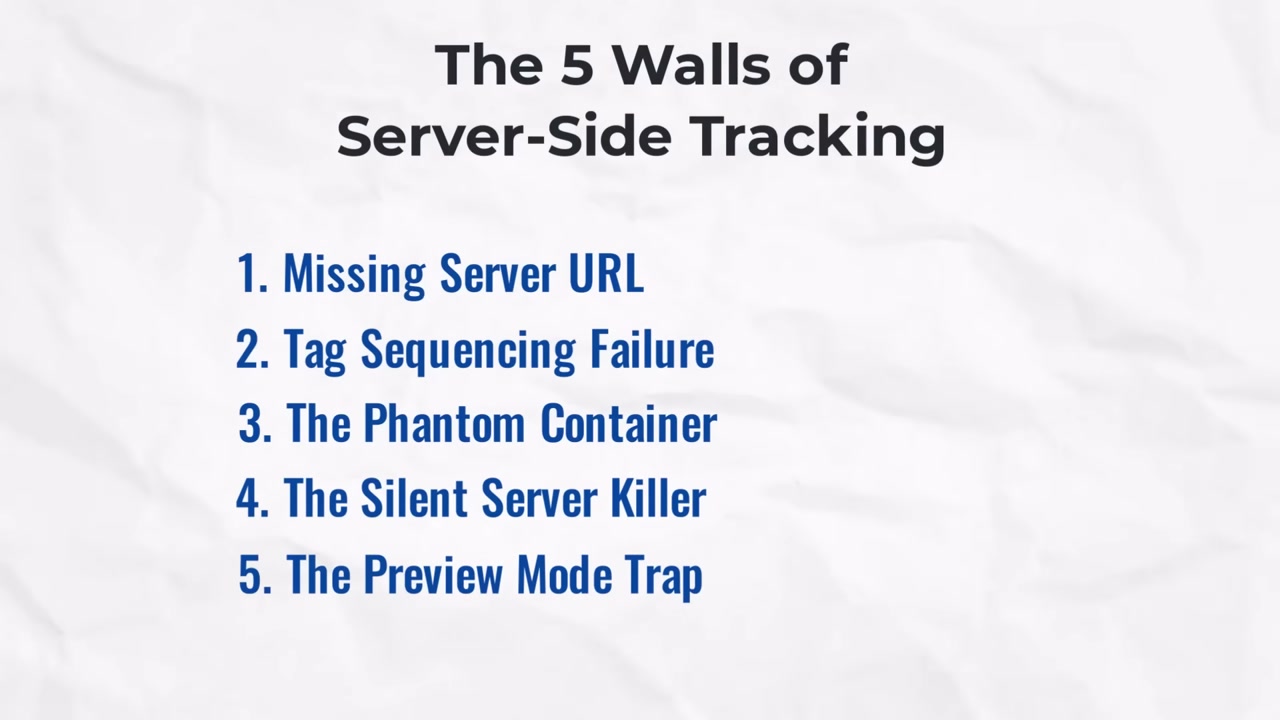
But because you'd hit the same five walls that nobody warns you about—the stuff the tutorials skip right over.
Walls like spending an entire day following guides, hitting preview mode… and getting nothing. Empty screen. Zero hits. No idea why.
Or finally getting it “working”—only to watch GA4 start counting double events. Same purchase showing up twice. Your data is now worse than before you started.
Watch the Full Breakdown
Or my favorite: everything looks perfect in preview, you ship it live, and your conversion tracking just… dies.
Know that feeling?
I'm Jeff Sauer. I run MeasureU—a community of over 4,000 marketers and measurement pros who troubleshoot this stuff constantly. So I've seen these exact failures play out hundreds of times.
That's where this guide comes in. I'm walking you through the five GTM server-side migration mistakes that wreck most DIY setups, and exactly how to avoid every single one.
Key Takeaways
- Your server container receives zero data if you're missing one URL parameter in your Web GTM container
- A single dropdown change fixes attribution breaking across your entire GA4 setup
- Preview mode lies to you—it bypasses ad blockers and privacy tools your real users have installed
- Most server-side failures happen in the Web container, not the Server container
Table of Contents
- Mistake #1: Missing or Incorrect Server URL in Web Tags
- Mistake #2: Tag Sequencing Failure (The “First-Touch” Issue)
- Mistake #3: The “Phantom” Container (Unpublished Changes)
- Mistake #4: The Silent Server Killer
- Mistake #5: The “Preview Mode” Trap
Mistake #1: Missing or Incorrect Server URL in Web Tags
This is the most common place people get stuck—and it's usually the very first thing that goes wrong.
The Symptom
You open your Server GTM preview mode. You refresh your website. You look at the “Incoming Requests” column.
Nothing.
Completely empty.
But here's the confusing part—your Web GTM preview says tags have fired. Everything looks fine on the client side.
So what gives?
The Mechanism
The Google Tag—gtag.js—defaults to sending data directly to Google. Not to your server. Directly to Google.
If you don't explicitly tell it to route through your server first, it just… doesn't.
Your server is sitting there waiting for requests that are never going to arrive.
The Fix
In your Web GTM container, open your Google Tag. Go to Configuration Settings. Add a new parameter.
The key is: `server_container_url`
The value is your server endpoint—something like `https://ss.yourwebsite.com`
And here's the part that trips people up: no trailing slash.
If you put `https://ss.yourwebsite.com/` with that slash at the end—it won't work.
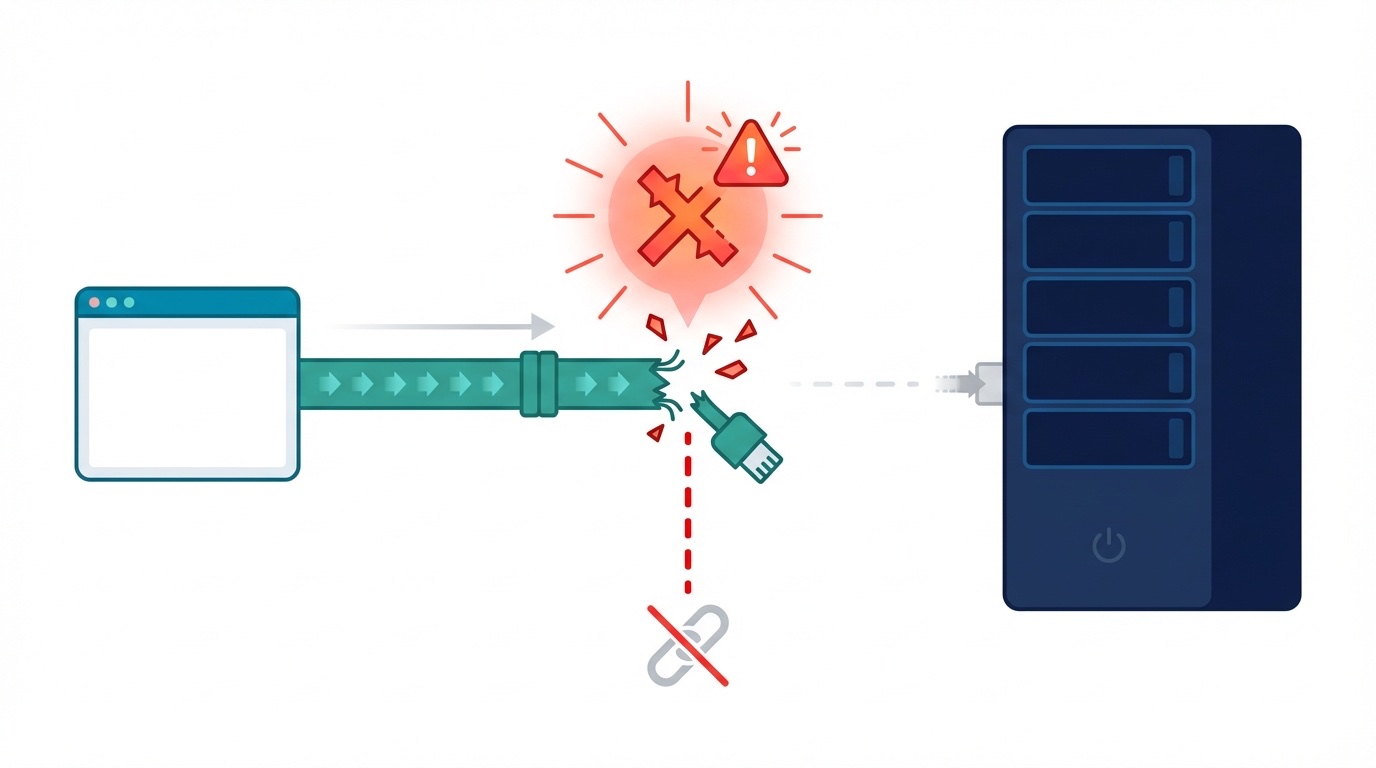
That one character will break the whole thing.
Once you add that parameter correctly, refresh your site, and suddenly your server preview lights up. Requests start flowing. You're in business.
But if you skip this—or there's a typo in that URL—you'll stare at an empty preview window for hours wondering what you did wrong.
Mistake #2: Tag Sequencing Failure (The “First-Touch” Issue)
I call this the “first-touch” issue. And it corrupts your data in ways that don't show up for weeks.
The Symptom
You see traffic in GA4. Data is flowing. Things look like they're working.
But then you check your acquisition reports and something's off.
Session source/medium shows a huge spike in `(not set)` traffic.
Or your events are arriving without session IDs.
Attribution is broken. And you have no idea why.
The Mechanism
In GTM, tags don't all fire at exactly the same moment. There's a sequence. A race.
And if your event tags—like page view—fire even milliseconds before your Configuration Tag loads…
Those events are orphaned.
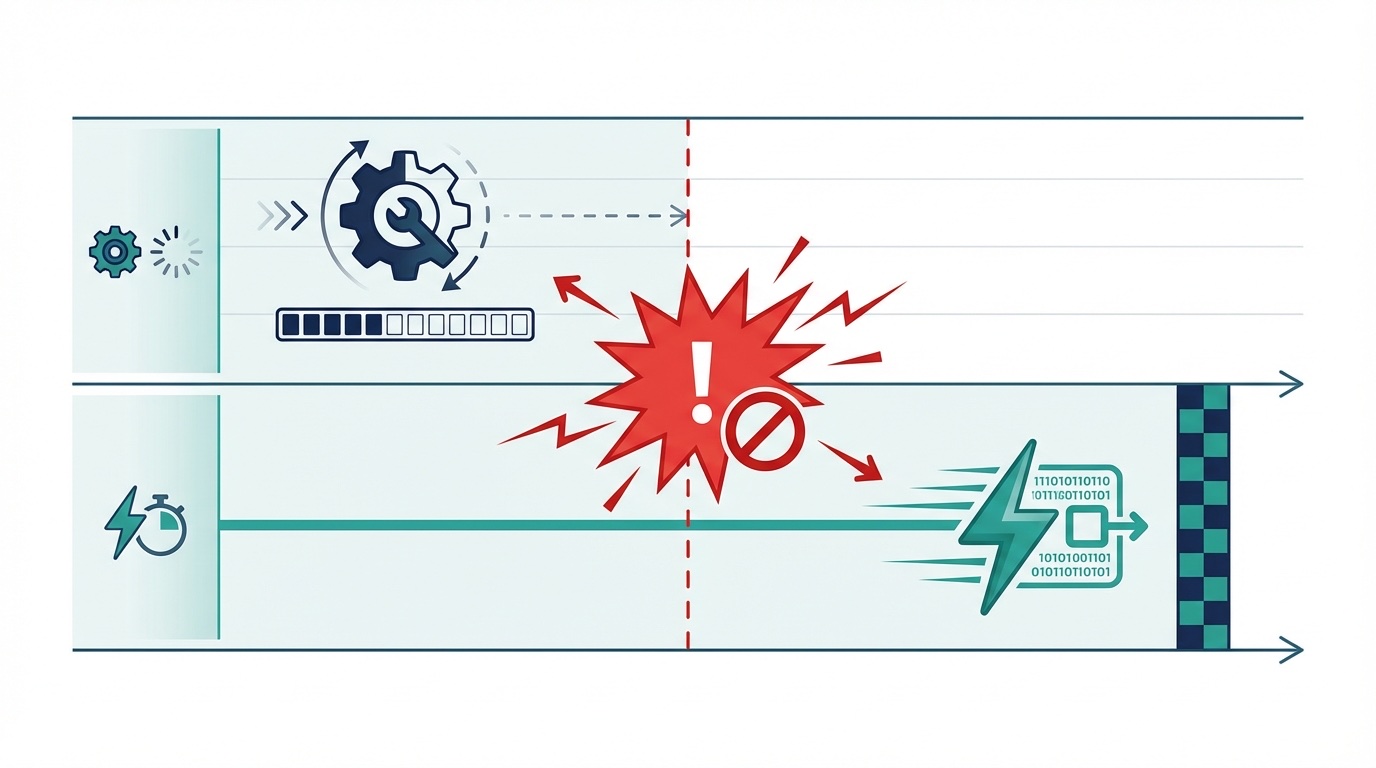
They arrive at GA4 without the session context required for proper attribution. GA4 looks at them and goes, “I don't know where this came from.”
So it defaults to `(not set)`.
The Fix
This is a one-minute change that most tutorials never mention.
In your Web GTM container, find your Google Tag—that's your Configuration Tag. Look at the trigger. It's probably set to “All Pages.”
Change it to “Initialization – All Pages.”
The Initialization trigger fires before any other triggers in GTM. It guarantees your configuration loads first, before any events try to fire.
Once you make that change, your orphaned events disappear. Attribution starts working again.
One dropdown change. Fixes a problem that can corrupt months of data.
Mistake #3: The “Phantom” Container (Unpublished Changes)
This one is embarrassing when it happens to you. And it will happen to you.
The Symptom
You check your browser's Network tab. You see requests going to your custom domain—`ss.yourwebsite.com` or whatever you set up.
But they're returning 404 errors. Not found.
You check your server infrastructure. Status says “Healthy.”
The server is running. So why is it returning 404s?
The Mechanism
The physical server is running. But the GTM container on that server?
It's empty.
You set everything up. You configured your clients and tags. You tested in preview.

But you never clicked Publish.
The container logic isn't live. There's nothing there to process requests.
Your server is basically an empty building with the lights on.
The Fix
Go to your Server GTM container. Click Submit. Click Publish.
Do this even if the container is brand new. Even if it's empty. Publishing establishes a live version that can actually receive and process requests.
Until you publish, your server is a ghost.
Mistake #4: The Silent Server Killer
This one is brutal because your server container just goes dark. No errors. No warnings. It just stops receiving data.
The Symptom
You open your server container preview. It's empty. No requests coming in.
You check your GA4 reports, and data is still flowing in. So GA4 is working.
But your server? Nothing.
You're getting data in GA4, but none of it is going through your server. Which means all your server-side tags—your Facebook CAPI, your enhanced conversions, everything you set up server-side—none of it is firing.
The Mechanism
When you set up server-side with Stape, the WordPress plugin configures your Google Tag to route data through your server container URL. That's the correct path. Browser sends data to your server. Server processes it. Server forwards it to GA4 and your other platforms.
But here's what nobody warns you about.
If you have any other plugin on your WordPress site that also initializes GA4—something like Site Kit, Google for WooCommerce, or any plugin that injects its own gtag snippet—that plugin reinitializes the same GA4 measurement ID but without your server container URL.

And that takes precedence.
So now you've got two configs fighting for the same measurement ID. And the one without the server URL wins.
Your server-side routing gets overwritten. GA4 starts receiving data directly from the browser. Your server container gets bypassed completely.
We saw this exact scenario with a client. They had the Stape WordPress plugin installed and configured correctly. Server-side was set up properly. But they also had another GA4 plugin active on the site. That plugin loaded its own direct connection to GA4 using the same measurement ID, and it took precedence. The server container went completely silent.
The Fix
First, audit your WordPress plugins. Look for anything that injects GA4 or gtag code:
- Site Kit
- Google for WooCommerce
- MonsterInsights
- Any plugin that says it “connects” to Google Analytics
If you're running server-side through Stape, you need one path only. The Stape plugin handles the GTM snippet and the server routing. Any other plugin that touches GA4 needs to be disabled or have its tracking function turned off.
Second, verify in your browser's network tab. Filter for your measurement ID. Every request should be going to your server domain, not directly to google-analytics.com. If you see requests going to Google directly, something else on the site is overriding your config.
One measurement ID. One initialization. One path through your server. That's it.
Mistake #5: The “Preview Mode” Trap
This one is especially painful because you did everything right.
The Symptom
Everything looks perfect in GTM Preview Mode. Requests flowing. Tags firing. Events appearing in GA4 DebugView.
You publish. You celebrate. You move on with your life.
Then a week later you check your data and your volume is suspiciously low.
Or missing entirely.
What happened?
The Mechanism
GTM Preview Mode is a liar. A well-meaning liar, but a liar.
Preview Mode often bypasses ad blockers. It bypasses privacy extensions. It bypasses the stuff your real users have installed.
It gives you a best-case scenario that doesn't reflect the real world.
Your actual users?
- They've got uBlock Origin
- They've got Brave browser
- They've got Safari with ITP limiting cookies and storage
- They've got privacy badger
- They clicked “reject all” on your consent banner
Preview Mode doesn't simulate any of that.

So you test in a perfect environment, publish to a hostile environment, and wonder why your data disappeared.
The Fix
Testing like a real user, not like a developer.
First—always validate using an Incognito window without Preview Mode active. Just you. Raw browser. Real conditions.
Second—open your browser's Network tab and inspect requests to your custom domain. Are they going out? Are they returning 200 OK status codes? Or are they being blocked?
Third—test with an ad blocker enabled. Install uBlock Origin. Hit your site. Does your tracking still work? If not, you've found a problem before your users did.
The whole point of server-side is to improve data collection in this hostile environment. But if you only test in Preview Mode, you'll never know whether it's actually working until your data tells you it isn't.
The Bottom Line
Five mistakes that wreck most DIY server-side setups:
1. Missing server_container_url parameter. Your server never receives hits.
2. Tag sequencing failure. Your Configuration Tag fires too late and attribution breaks.

3. Unpublished container. Your server is running but empty.
4. Plugin conflicts. Another GA4 plugin overrides your server routing.
5. The preview mode trap. Testing in perfect conditions, deploying to hostile ones.
None of these are complicated to fix once you know they exist. That's the whole point.
Server-side tracking isn't hard. The information gap is hard.
Tutorials show you the happy path. They don't show you the walls.
Now you know where the walls are.
Your Next Steps
1. Audit your Web GTM container for the `server_container_url` parameter
2. Change your Google Tag trigger to “Initialization – All Pages”
3. Verify your Server GTM container is published
4. Check for conflicting WordPress plugins
5. Test in Incognito with an ad blocker before celebrating
If you want to go deeper—we teach all of this inside MeasureU.
Go fix your server-side setup. Drop a comment on the YouTube video and let me know how it goes.