Tired of paying what I call the “tracking tax”?
You know what I mean. You’ve done the hard work, ad strategy, creatives, copy, all of it. But before you can actually run the campaign, you’re stuck wrestling with Google Tag Manager containers, debugging pixel fires at 9 PM, and explaining to clients why their conversion data looks wonky.
I talk to agency owners constantly, and this is the number one complaint I hear. GTM tracking setup eats hours that should go toward strategy and creative work. And look, I’m the tracking person for multiple organizations including MeasureU, so I get it, tracking matters. But that doesn’t mean it needs to be this painful.
That’s where Tracklution comes in.
In this post, I’m going to walk you through how you can have Facebook Ads and Google Ads tracking set up in minutes. No GTM. No code. Just enter some IDs and you’re done. I actually timed myself doing this, we’re talking under 10 minutes for both platforms.
Disclosure: Tracklution sponsored this post. The walkthrough below is how I actually use the tool across the accounts I manage.
Watch the Full Walkthrough
Below is the full written walkthrough, the agency case for ditching GTM, the step-by-step setup for both platforms, and a quick FAQ.
What You’ll Learn in This Post
- Zero GTM required: enter your pixel ID and access token for Meta, customer ID for Google Ads, and that’s it
- Multi-client management: one login gives you access to all your client containers (no more juggling six different logins)
- AI-powered support: Trackie, the built-in AI assistant, can unblock you at 10 PM when you’re stuck
- Automatic conversion creation: create Google Ads conversions directly from the interface without touching Google Ads admin
Table of Contents
- Why Agencies Need an Alternative to GTM Tracking
- The Tracklution Platform Overview
- Setting Up Facebook Ads Tracking (Step-by-Step)
- Setting Up Google Ads Tracking (Step-by-Step)
- Real-Time Tracking Data & Debugging
- Frequently Asked Questions
- Your Next Steps
Why Agencies Need an Alternative to GTM Tracking
Here’s the thing about running ads for clients. You’re not just doing one job, you’re doing two.
Job one: create campaigns that convert. Job two: make sure the data actually tracks properly so you can prove the campaigns convert.
And job two? It’s a time sink. You’re logging into GTM, setting up triggers, configuring tags, testing in debug mode, waiting for conversions to fire, realizing they’re not firing, checking your container setup, discovering your client didn’t install the container on the site.
I’ve been there. Nine o’clock at night, trying to get a client’s Meta pixel to fire properly before a campaign launch the next morning. It’s not fun.
The brutal math is this: every hour you spend debugging tracking is an hour you’re not spending on strategy. And for one-person agencies or small teams, that tracking tax adds up fast.
The Tracklution Platform Overview
So what actually is this thing?
Tracklution is a tracking platform built specifically for this problem. When you log in, you see a dashboard with all your client containers in one place.
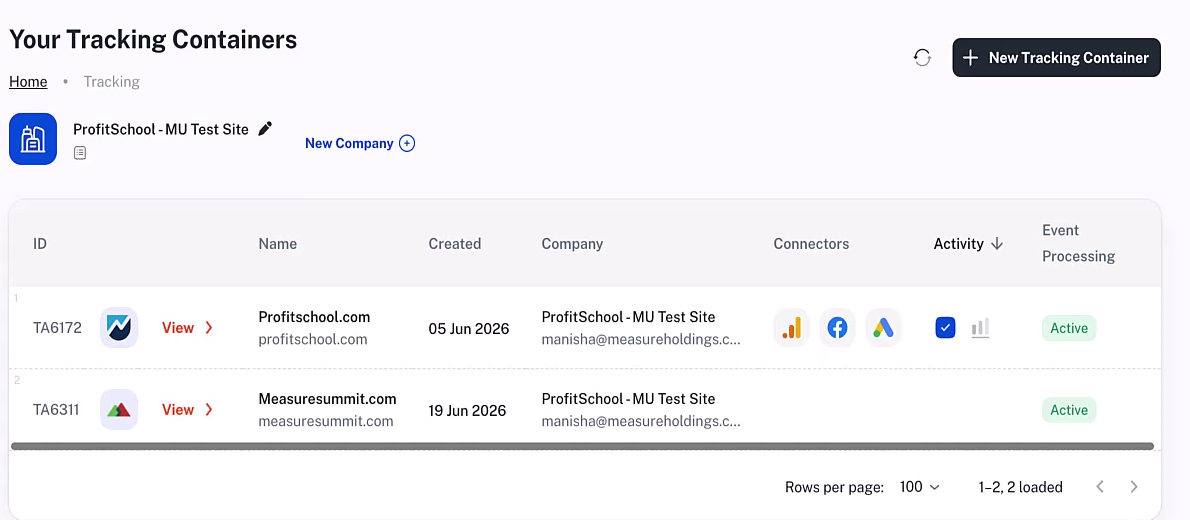
Notice what you’re NOT doing here: logging into five different platforms with five different credentials. You’ve got one hub, all your clients, right there.
The Connector System
Each container has what they call “connectors,” basically integrations with ad platforms. So for one client I can see Meta, Google Ads, and GA4 all connected.
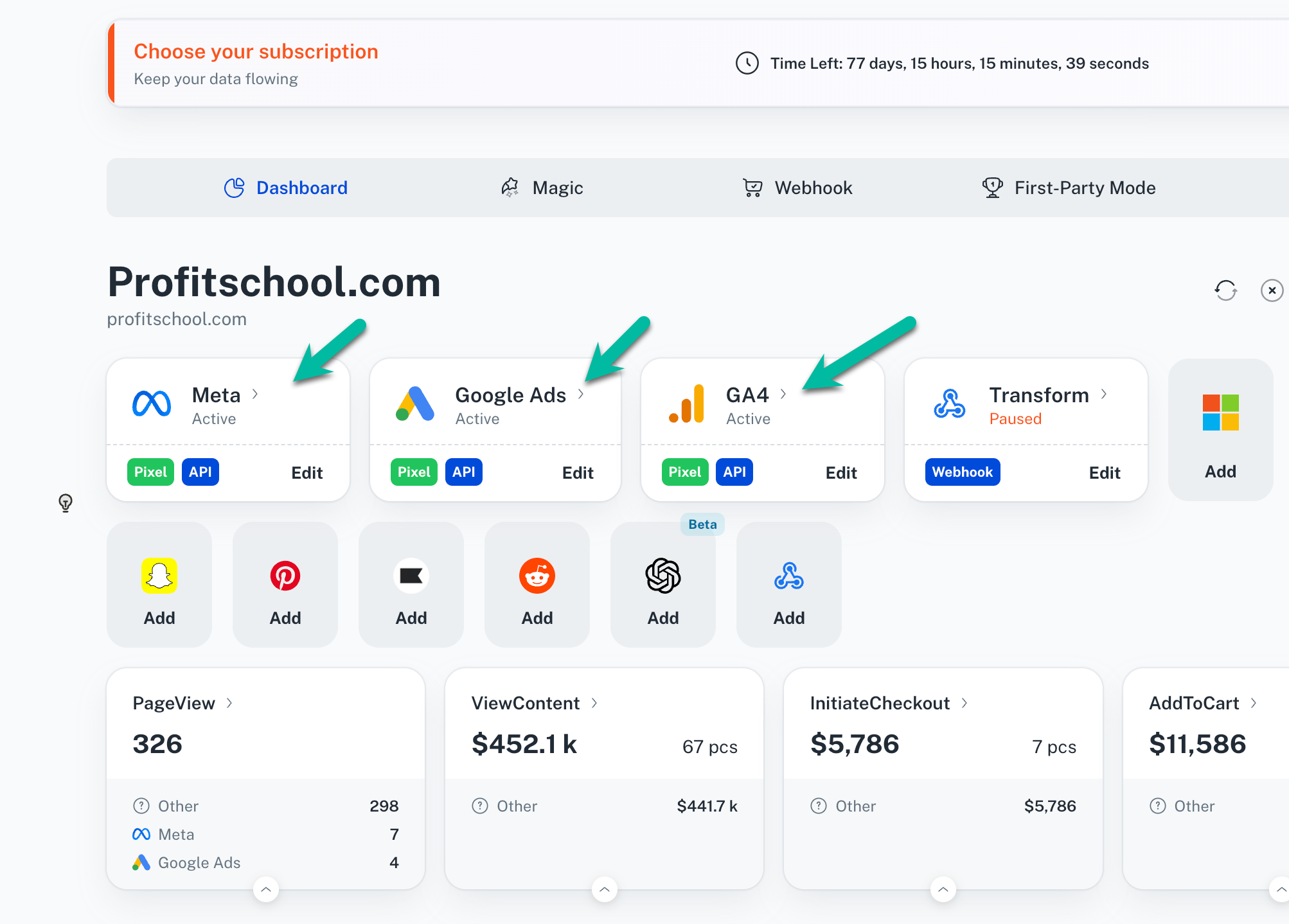
They’ve also got connectors for Microsoft Ads, LinkedIn, TikTok, Pinterest, a webhook connector for sending data anywhere, and yes, even ChatGPT.
Meet Trackie (Your 10 PM Support)
Okay, this is the feature I actually love.
Trackie is their AI assistant, and she (they told me she’s a she) can actually look at your setup and tell you what’s wrong. So instead of sitting there confused at night, emailing support, waiting for someone to get back to you, you just ask Trackie.
I tested this live and asked “Is my Meta ads tracking set up?” and Trackie came back with a detailed answer: it was running but only partially complete, because I had no bottom-of-funnel events.
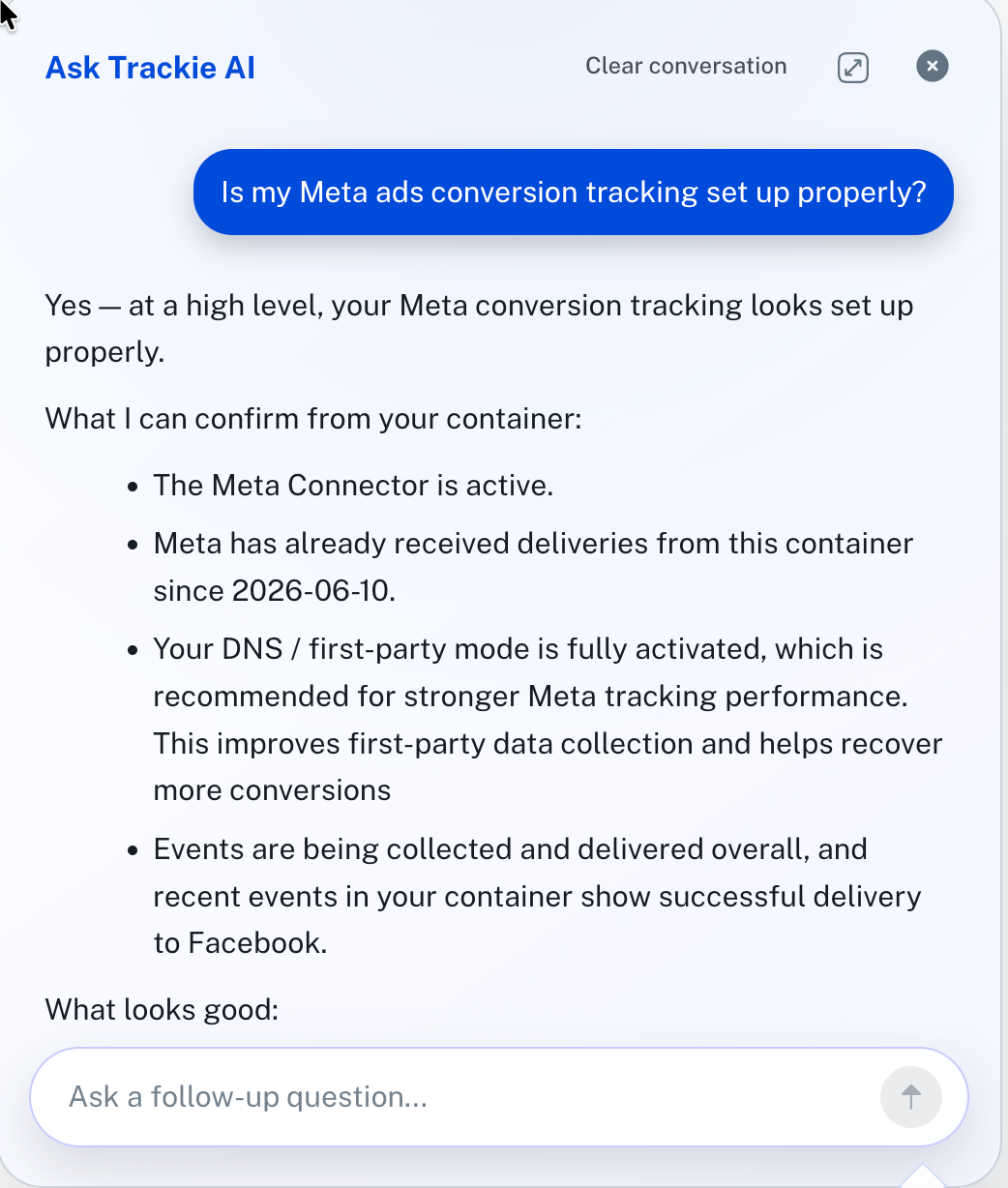
She was right. I hadn’t set up purchase tracking because that site doesn’t have purchases. But the point is: nine times out of ten, Trackie has unblocked me without needing to wait for human support.
Setting Up Facebook Ads Tracking (Step-by-Step)
Alright, let me show you how the sausage gets made. I started a timer when I recorded this, so let’s see how fast we can get Meta and Google Ads tracking running.
Step 1: Create a New Container
Click “New Tracking Container” in the top right. Enter your website URL and hit start.
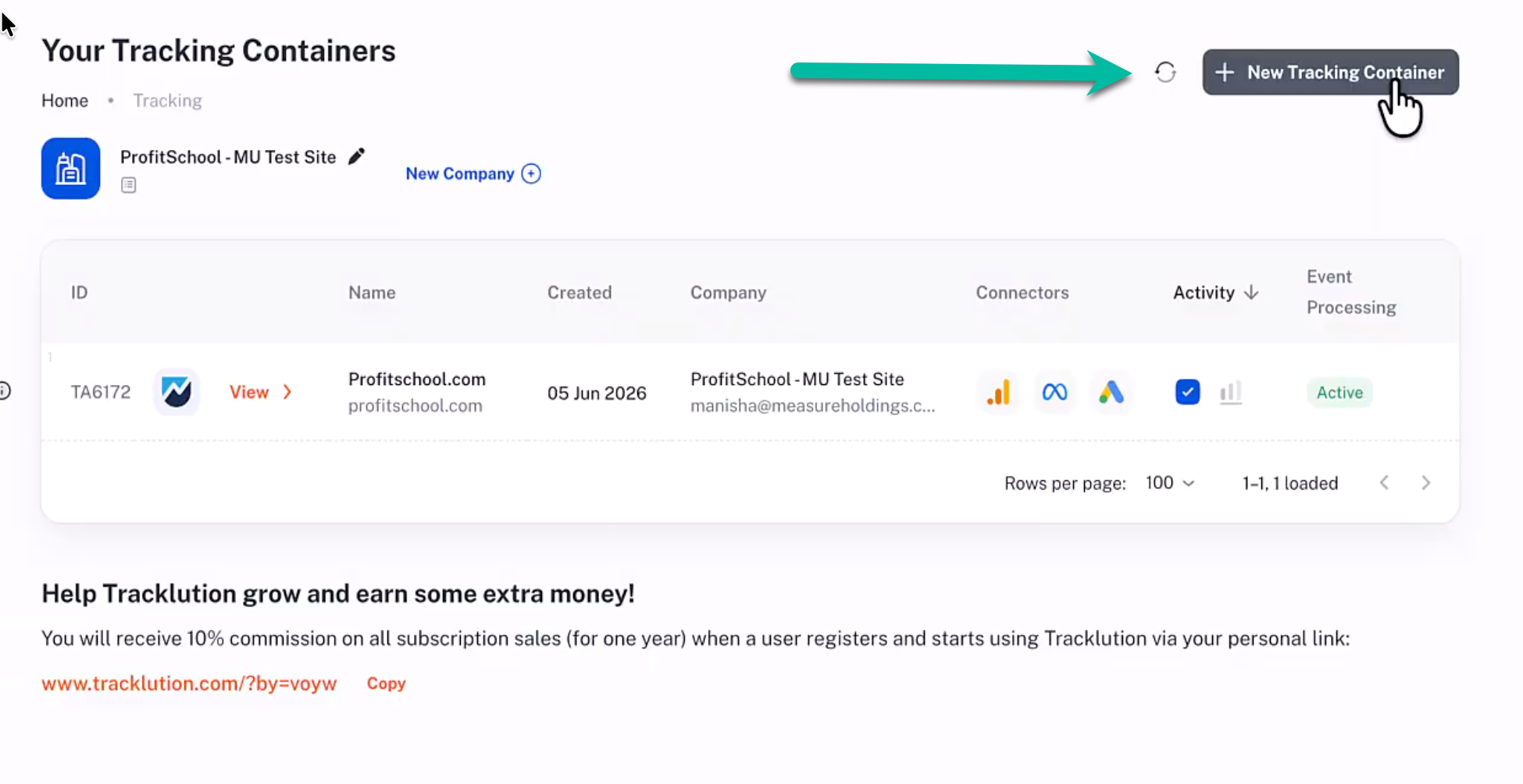
Tracklution will scan your site and show you installation options. If you’re on WordPress with WooCommerce, you’ll see a plugin option, just download it, install it, enter two pieces of info, done. Same deal with Shopify, they have an app. For other sites, you grab the standard install code and have your developer add it once. No different than installing any other tracking script.
Step 2: Add the Meta Connector
Once your container exists, click “Add” on the Meta connector. You need exactly two things.
Thing 1: Your Pixel ID. Go to Meta Events Manager, find your pixel, and copy the ID.
Thing 2: Your Access Token. This is for the Conversions API (CAPI). Still in Events Manager, go to Settings, scroll down until you see “Setup Direct Integration,” and click “Generate Access Token.”
Quick security note: don’t share this access token in Slack or email. Have clients send it via LastPass or 1Password. I’ve learned this one the hard way.
Paste both values into Tracklution, set it to live, and click create. That’s it. Your CAPI tracking is done. No tags. No triggers. No GTM container. No debugging pixel fires.
Setting Up Google Ads Tracking (Step-by-Step)
Now let’s do Google Ads. Click “Add” on the Google Ads connector.
Step 1: Enter Your Customer ID
You know that number in the top right corner of Google Ads, the one with dashes? That’s your customer ID. Paste it in and click “Send Permission Request.”
Step 2: Grant Access
Go to Google Ads, then Admin, then Access. You’ll see the permission request from Tracklution. Grant it, then go back to Tracklution and click “I’ve granted access.” Done.
Step 3: Create Conversions (The Cool Part)
Here’s where it gets good for agency owners. Normally, to create a conversion action in Google Ads, you’d go into Goals, wade through the interface, and configure everything manually. Pain in the neck.
In Tracklution, you just click a button.
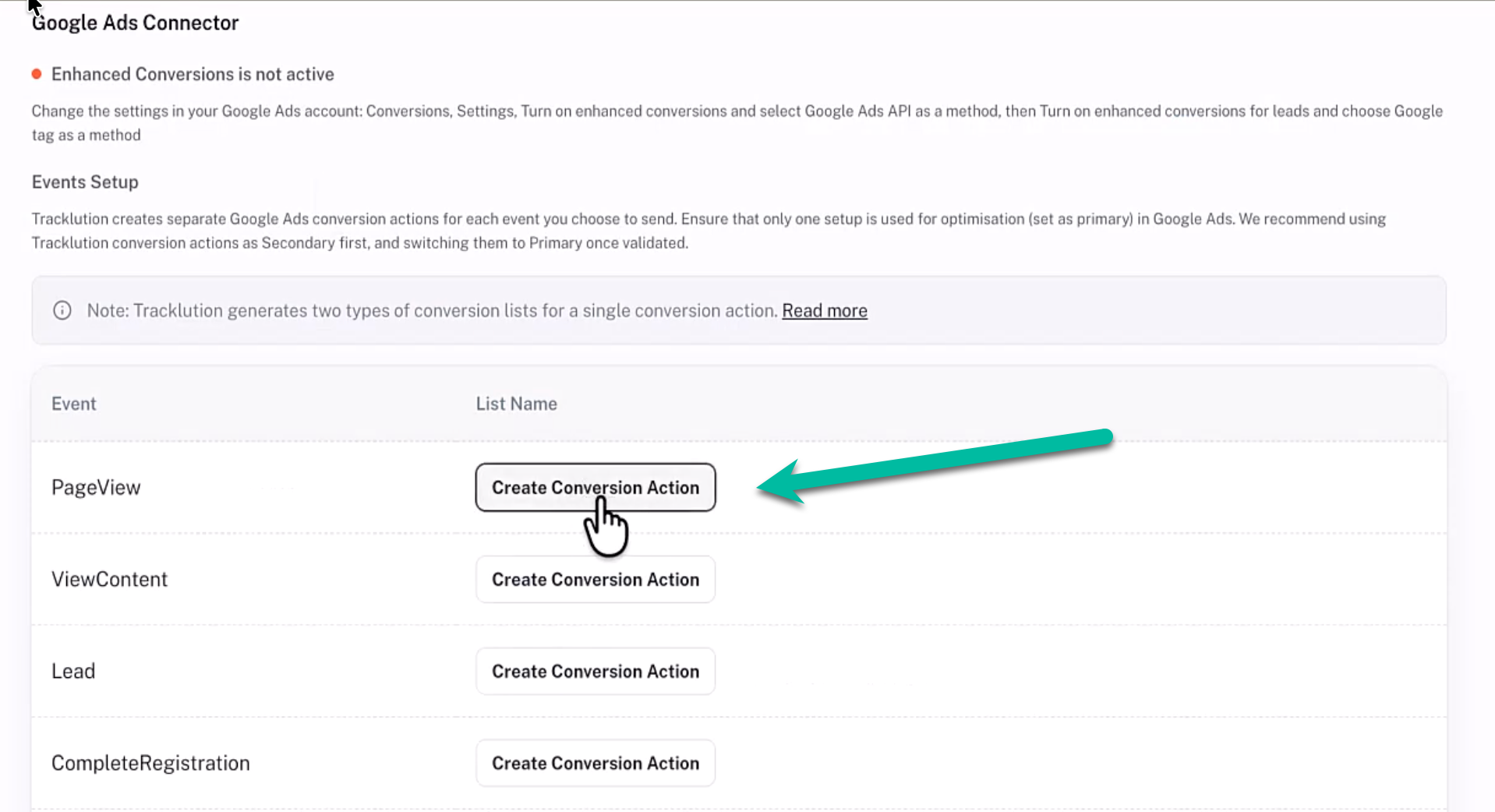
See “Start Trial”? Click it. “Submit Form”? Click it. “Purchase”? Click it. Tracklution creates the conversion action in Google Ads automatically. When I checked Google Ads, my “Tracklution Purchase 2026” conversion was right there, created and ready to receive data.
Real-Time Tracking Data & Debugging
Once data starts flowing, you can see every single hit in the Tracklution dashboard. Click on any event and you’ll see:
- What the event was (page_view, view_content, etc.)
- What was sent to Facebook
- What was sent to Google Ads
- What was sent to GA4
- The exact data payload
- The actual API call
So when a client asks “is my tracking working?” you don’t have to guess. You can show them the receipts.
Frequently Asked Questions
Do I need GTM at all with Tracklution?
Nope. The whole point is you skip GTM entirely. You install their script once (or use their WordPress plugin or Shopify app) and manage everything from their interface.
What if I get stuck during setup?
Ask Trackie. Seriously. I’ve tested asking her things with slightly wrong terminology, like “Google client account number” instead of “customer ID,” and she still figured out what I meant and gave me the right steps.
Can I manage multiple clients from one account?
Yes. That’s actually one of the main selling points for agencies. One login, all your client containers visible on the dashboard. Add a new client, create a new container, set up their connectors.
What platforms does Tracklution support?
Meta (Facebook and Instagram Ads), Google Ads, GA4, Microsoft Ads, LinkedIn, TikTok, Pinterest, and webhooks for sending data anywhere.
What about WordPress and Shopify sites?
They have dedicated plugins and apps for both. WordPress with WooCommerce gets a WooCommerce plugin. Shopify gets a Shopify app. Install, enter your credentials, done.
Your Next Steps
If you’re an agency owner running ads for clients, especially if you’re a one-person shop or small team, here’s what I’d recommend:
- Start with their audit tool. I did a whole video on this last month. It’ll show you what tracking your clients actually have running on their sites right now. Great for discovery calls.
- Pick one client to test. Don’t migrate everyone at once. Set up one container, get Meta and Google Ads connected, and see how it feels.
- Actually use Trackie. When you hit a wall (and you will hit small walls, that’s normal), ask the AI before emailing support. It’s surprisingly good.
Ready to stop paying the tracking tax? Tracklution and set up your first client in under 10 minutes.