Google Analytics can help your business flourish, but only if you get the setup right. Who wants to take decisions on incomplete or inaccurate data? The first, crucial part is getting the setup right to implement and configure Google Analytics in line with your business objectives.
In this post I will touch upon a few key mistakes that I found often when doing Google Analytics setup audits. And I will provide clear solutions for each of them. I know your business is different from every other business out there. But there are some general, solid guidelines that apply to every website and business that you should follow.
1. Tracking Code Incorrect or Incomplete
Tracking issues are on top of my issues list! Your tracking has to be properly installed, otherwise you might miss out on capturing key data on your site. Incomplete and/or incorrect data can lead to bad marketing decisions that hurt your business. So if your data isn't right, you could better refrain from making data-driven decisions at all!
Independent of which web analytics tool you use, you should invest the time and knowledge to get your setup right. For demonstration purposes I focus on Google Analytics in this article.
Tools for Checking Your Implementation
There are different tools out there to debug your implementation and ensure everything is working properly. I will elaborate on two tools that I often use:
- Tag Assistant: perfect fit for detailed debugging and problem solving on the "page" level.
- Screaming Frog SEO Spider: perfect fit for debugging on the website level across all pages).
Tag Assistant
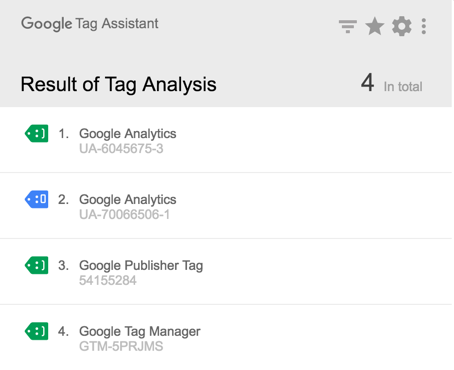
Tag Assistant is a Chrome extension that can be used to create, validate, diagnose, and troubleshoot your Analytics data on each of your pages. Once you create a recording and detect a problem, you can check again to verify whether your tags are firing correctly following a fix. I usually debug specific issues with Tag Assistant, but don't use this plugin for a broad code scan on my website.
Learn more about it in the Google Analytics Help Center.
Screaming Frog SEO Spider
Screaming Frog SEO Spider is another great tool to find out whether your tracking code is correctly installed on all of your pages. There are two versions available: FREE, for websites with 500 URLs max, and Paid (£149) for more than 500 URLs.
This is how it works:
- Install Screaming Frog SEO Spider.
- Navigate to "Custom" section and select "Search".
- Create two filters, either based on your GTM snippet or UA code (hardcoded). You need to set up both a "contain" and "does not contain" filter to more easily interpret the results later.
- Start the crawl.
- Review the crawl results in the "custom" section.
Apparently there is one URL that doesn't contain the GTM container snippet: online-metrics.com/cheat-sheet. This is because I have implemented Google Analytics hardcoded in that page instead of using the GTM snippet.
Other solutions for debugging your setup:
Tracking code: Areas to Explore
At the very minimum you should check three things with regards to the tracking code installed.
Tracking code version
If you haven't done already, make sure to upgrade to Universal Analytics. Tag Assistant will show which version you're using and whether you have to migrate or not.
Code placement
Where to place your tracking code depends on whether you use Google Tag Manager or not.
- Google Tag Manager: implement the JavaScript snippet in the
of your website and the