This post is sponsored by Tracklution, a MeasureU partner.
Tired of being asked whether Tracklution works with your existing Google Tag Manager setup? You're not alone. Over the last few months, this has been one of the most popular questions from the MeasureU community, and I get it. You've already invested time getting GTM on your site. The last thing you want is to rip that out and start over.
Good news: you don't have to.
Tracklution works beautifully with Google Tag Manager. And honestly? This combination might be even better than the WordPress plugin or Shopify app approach for certain situations. Especially if you've built a custom site (maybe using Claude or another AI coding tool) where those standard plugins don't apply.
That's where this GTM tracking method comes in. You install Google Tag Manager once, connect it to Tracklution, and then let Tracklution handle the heavy lifting of sending data to Meta, Google Ads, Microsoft, TikTok, LinkedIn, whatever platforms you're running ads on.
Let me show you exactly how to set this up in the next few minutes.
Watch the Full Breakdown
In this video, I walk through the whole setup, from getting Google Tag Manager on the site to seeing events land in the Tracklution dashboard.
What You'll Learn in This Post
- You can use Tracklution with any site that has Google Tag Manager installed, including custom-built sites
- The Tracklution template in GTM's gallery makes setup straightforward (it's created by Tracklution themselves, so fully safe)
- Once events flow to Tracklution, adding ad platform connectors takes minutes, just a pixel ID and access token
- This approach means you don't need to live in GTM to manage multi-platform server side tracking
Table of Contents
- What You'll Need Before Starting
- Step 1: Get Google Tag Manager on Your Site
- Step 2: Add the Tracklution Template to GTM
- Step 3: Configure Your First Page View Tag
- Step 4: Test in Preview Mode
- Step 5: Set Up Custom Events
- Step 6: Verify Data in Tracklution Dashboard
- Why This Approach Beats Traditional GTM Tracking
- Your Next Steps
What You'll Need Before Starting
Before we get into the actual setup, make sure you have:
- A Google Tag Manager container (if you don't have one, create it at tagmanager.google.com)
- A Tracklution account with a property set up
- Admin access to your website (for installing GTM if it's not already there)
- About 15-20 minutes to complete the full setup
Got all that? Let's do this.
Step 1: Get Google Tag Manager on Your Site
First things first, we need GTM actually running on your site. If you've already got it installed, skip ahead to Step 2.
For WordPress Sites
The easiest approach is using a plugin. I use GTM4WP (GTM for WordPress), but there are several solid options:
- Go to Plugins → Add New in your WordPress admin
- Search for “GTM for WordPress”
- Install and activate the plugin
- Enter your GTM container ID (the one that looks like GTM-XXXXXXX)
- Save settings
For Custom Sites (Claude-Built, Hand-Coded, etc.)
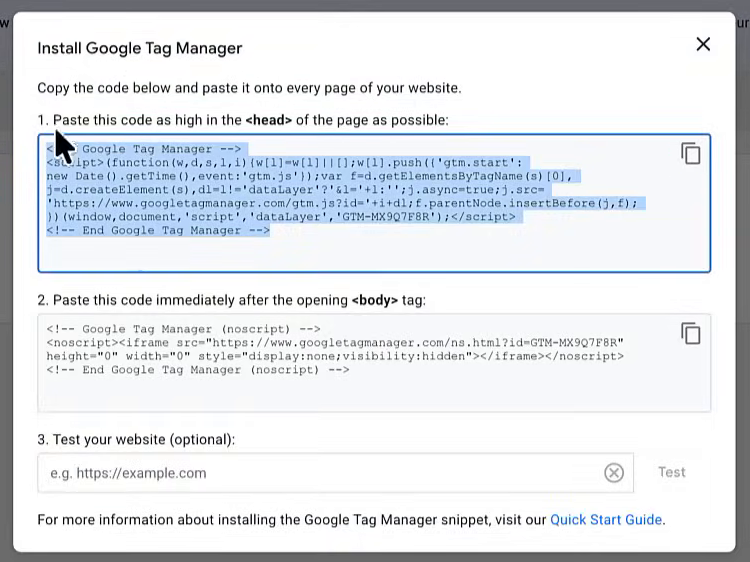
This is where it gets interesting for folks building with AI tools. In your Google Tag Manager container:
- Click on your container ID at the top (where it says GTM-XXXXXXX)
- You'll see two code snippets, one for the
<head>and one for the<body> - Copy each snippet and add them to your site's template
If you're using Claude or another AI coding assistant, you can literally paste those snippets and ask it to install them in the appropriate locations. Works like a charm.
Verify GTM Is Working
Before moving on, confirm GTM is actually firing. I use a browser extension called Tag Hound for this, it shows you which tag management systems are on any page. But you can also:
- Use GTM's Preview mode
- Check your browser's developer tools Network tab
- Look for the gtm.js request
Once you see that green light, you're ready for the fun part.
Step 2: Add the Tracklution Template to GTM
Here's the thing about Tracklution, they've made this ridiculously simple by creating an official template in Google Tag Manager's Community Template Gallery.
To install the template:
- In GTM, go to Templates in the left sidebar
- Under “Tag Templates,” click Search Gallery
- In the search box, type “tracklution”
- You'll see the official template, it's created by Tracklution, so it's legit
- Click on it, then click Add to workspace
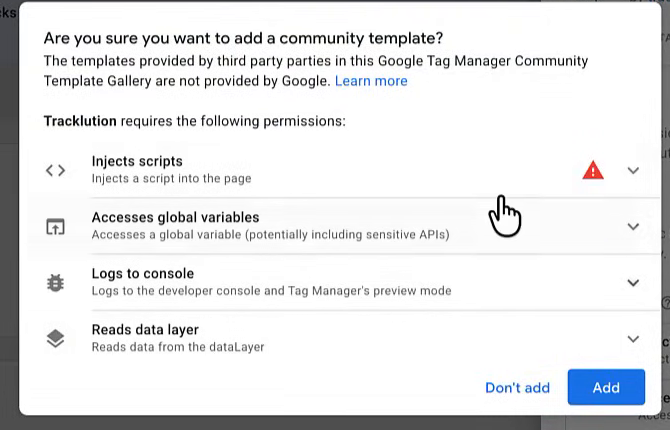
Quick security note: Whenever you're installing a GTM template, always check who created it. You want templates from trusted sources, the official company (like Tracklution or Meta), Simo Ahava, or other recognized contributors. Random templates from unknown sources? Hard pass.
The template will ask for permission to inject code on your site. This is normal, that's how templates work. But it's exactly why you want to verify the source first.
Step 3: Configure Your First Page View Tag
Now we need to connect the dots between GTM and your Tracklution account.
Head over to Tracklution:
- Log into your Tracklution dashboard
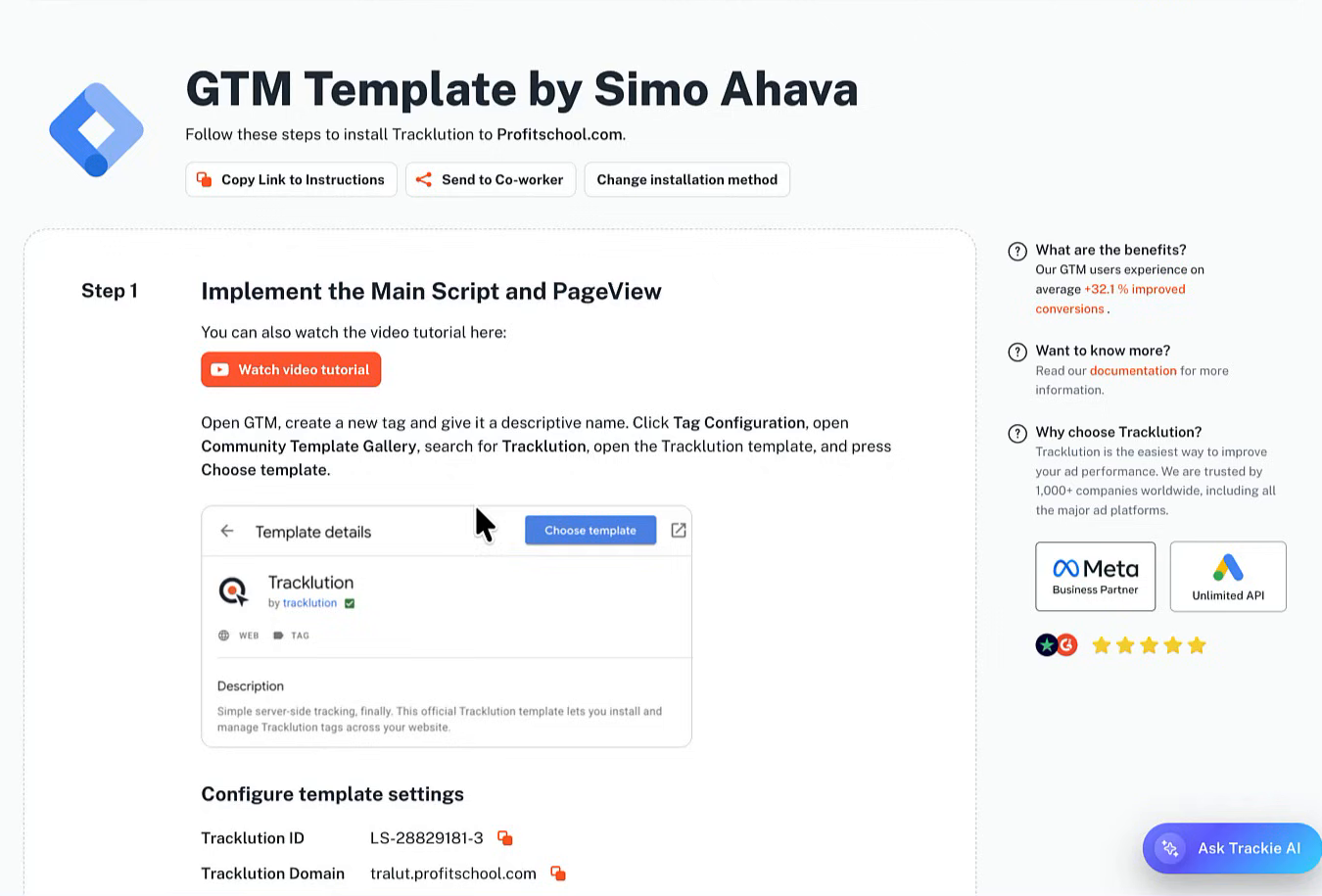
- Scroll down the top navigation and click Installation
- Find the Google Tag Manager section (it references the Simo template we just installed)
You'll need two pieces of information from this page:
- Tracklution ID: Click the copy icon next to it
- Tracklution Domain: Same thing, copy this too
Back in GTM:
- Go to Tags → New
- Click the big gray circle under “Tag Configuration”
- Scroll down to find your newly installed Tracklution template (or search for it in Custom templates)
- Paste in your Tracklution ID
- Paste in your Tracklution Domain
- For Event Name, select Page View from the dropdown
Set up the trigger:
- Click the trigger section (the circle with rings)
- Select All Pages
Name your tag something clear. I like: TRU - Page View (TRU for Tracklution, makes it easy to find later)
Click Save.
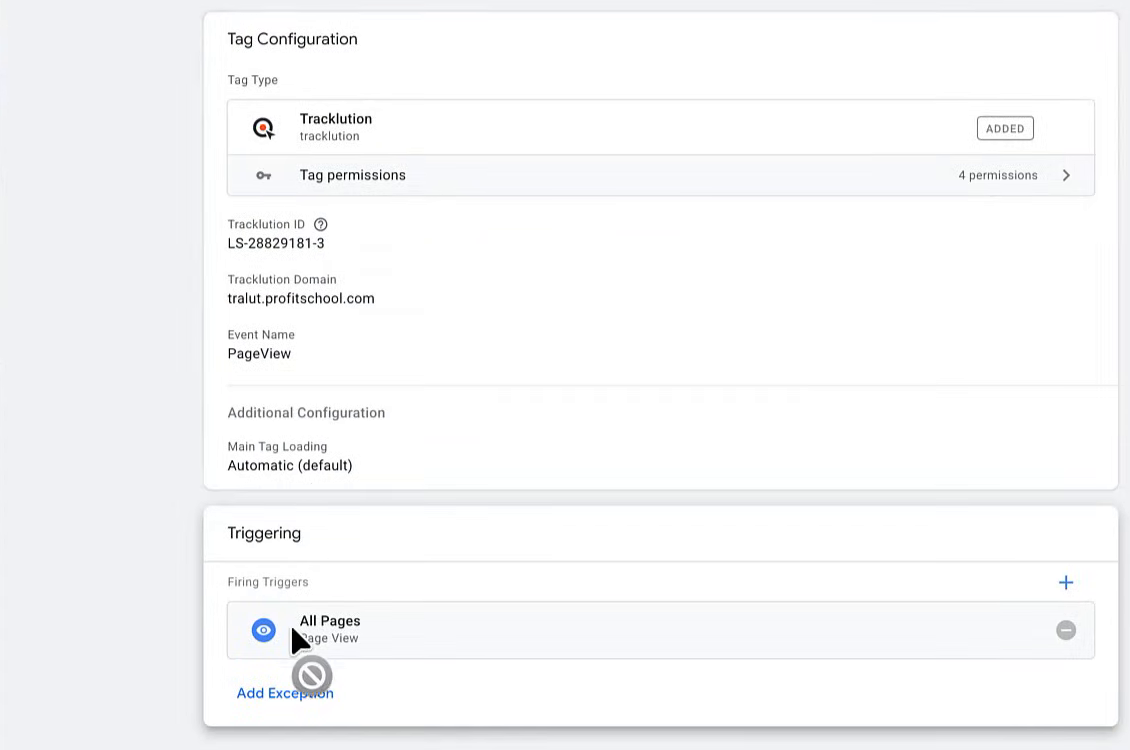
Note on consent: In this walkthrough I'm using the basic All Pages trigger. If you've got consent logic set up (and you probably should), you can absolutely add your consent-based trigger here instead. The Tracklution template works fine with whatever trigger logic you need.
Step 4: Test in Preview Mode
Don't skip this. Seriously.
- Click Preview in the top right of GTM
- Enter your website URL and click Connect
- Navigate around your site in the new tab that opens
- Check the Tag Assistant panel, you should see your Tracklution tag firing
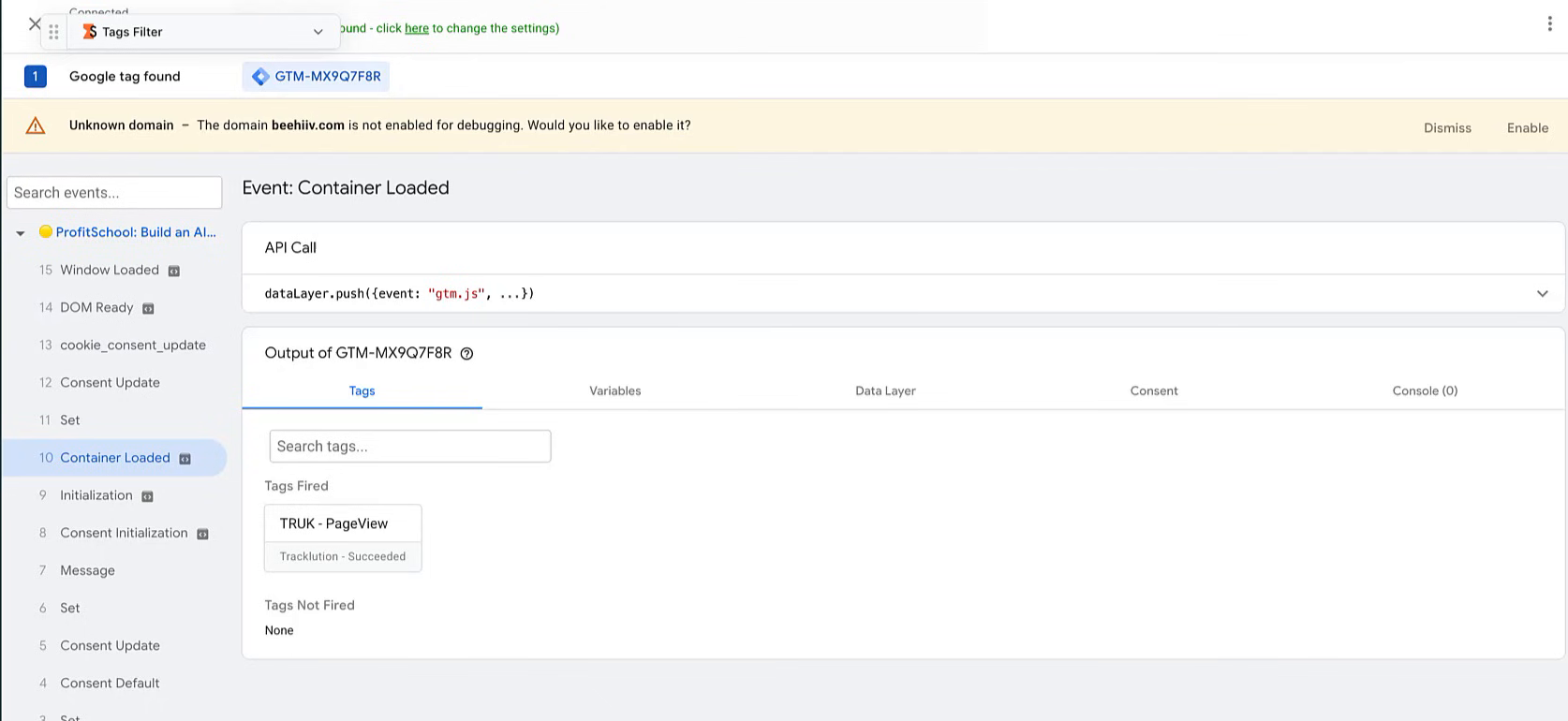
Pro tip: Log out of your site's admin before testing. When you're logged in as an admin, sometimes things behave differently, and you want to see what actual visitors experience.
The tag should fire on every page load. If you see it in the “Tags Fired” section, you're golden.
Step 5: Set Up Custom Events
Page views are great, but the real power comes from tracking specific actions. Let's say you want to track when someone views a particular page, like a lead magnet or challenge signup page.
The duplicate method (saves time):
- Go back to Tags in GTM
- Find your Page View tag
- Click the three dots in the corner → Copy
- Name this new tag something like
TRU - View Content - AI Challenge - Change the Event Name from Page View to View Content (or whatever makes sense for your use case)
Create a new trigger:
- Click the trigger section
- Remove the All Pages trigger (click the minus icon)
- Click the plus to create a new trigger
- Choose Page View as the trigger type
- Select “Some Page Views”
- Set the condition: Page URL → contains → your specific URL path
For example, if your challenge page URL is yoursite.com/ai-first-challenge, you'd enter ai-first-challenge in the condition.
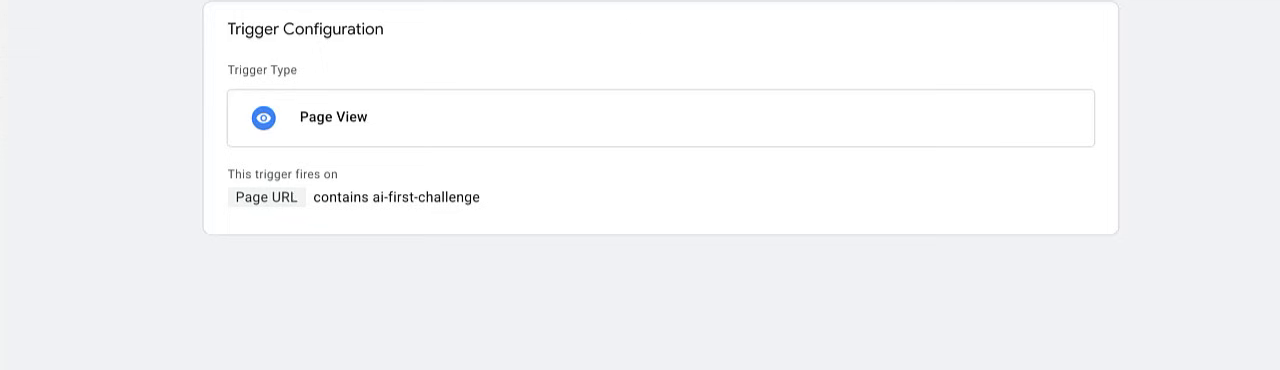
Save everything, then test it in Preview mode again. Navigate to that specific page and confirm the View Content tag fires.
Step 6: Verify Data in Tracklution Dashboard
Here's where you confirm the whole pipeline is working.
In Tracklution:
- Go to the Installation page
- Click Start listening for events
- Go back to your site and navigate around
- Return to Tracklution, you should see events appearing
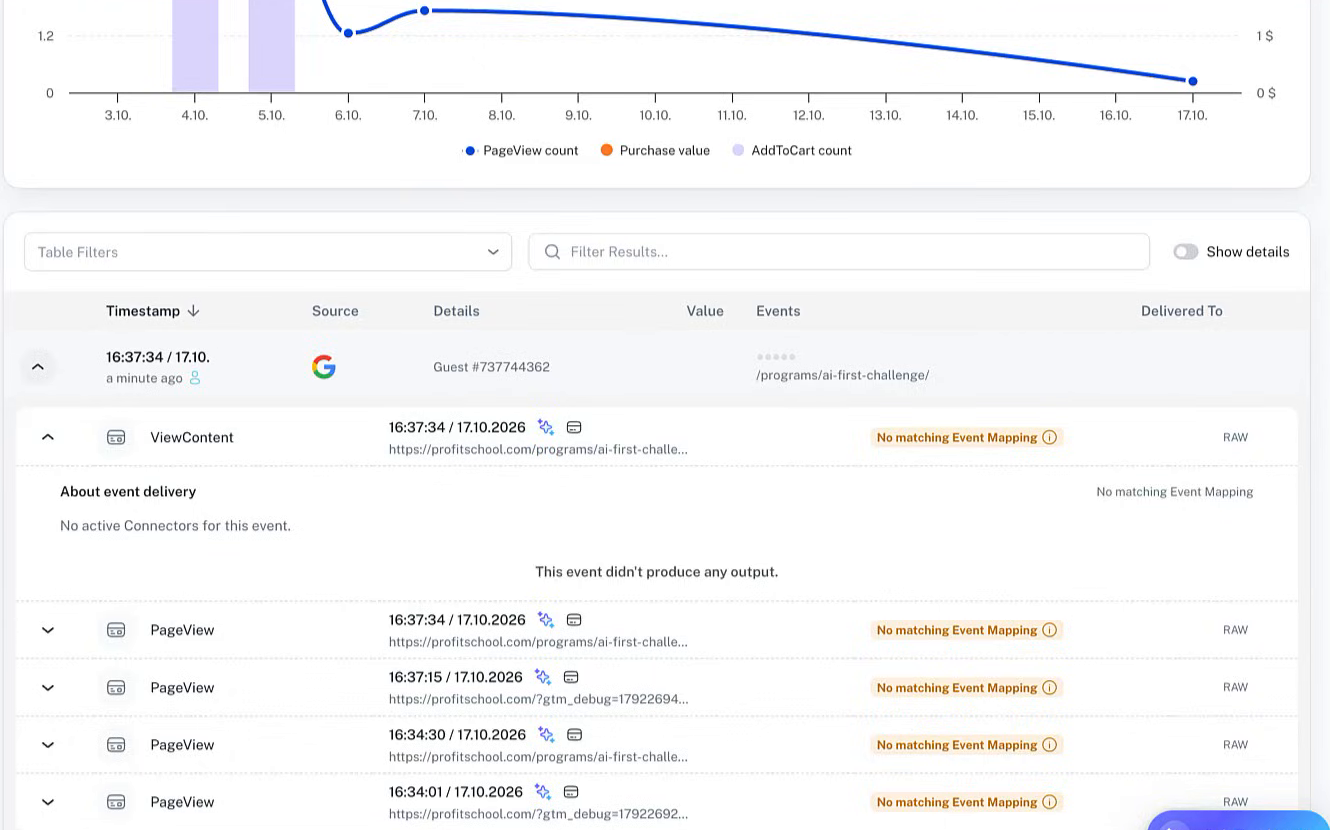
You can also check your main Tracklution dashboard. The data should show up within a minute or two. Sometimes it takes a hot second, don't panic if it's not instant. Refresh after 60 seconds and you'll typically see your events flowing in.
Once you see data in the dashboard, publish your GTM container. Go to Submit → Publish, and you're live.
Why This Approach Beats Traditional GTM Tracking
Let's be honest, managing multi-platform tracking through GTM alone is a nightmare. Every ad platform has its own tag, its own configuration requirements, its own quirks. You end up with 15 different tags, triggers everywhere, and the constant fear that one wrong click breaks everything.
That's where Tracklution completely changes the game for server side tracking.
Here's the mental model:
Old way (painful):
- Set up Facebook pixel in GTM
- Set up Google Ads conversion tracking in GTM
- Set up Microsoft Ads UET tag in GTM
- Set up LinkedIn Insight tag in GTM
- Set up TikTok pixel in GTM
- Maintain and troubleshoot each one separately
- Hope nothing breaks when browsers update
New way (with Tracklution):
- Send events from GTM to Tracklution (what we just did)
- Click “Add Connector” in Tracklution
- Enter your pixel ID and access token
- Done
I'm not exaggerating. Adding Meta as a connector in Tracklution literally takes entering two pieces of information. Same for Google Ads. Same for Microsoft. Same for TikTok, LinkedIn, Reddit, even the new OpenAI ads platform.
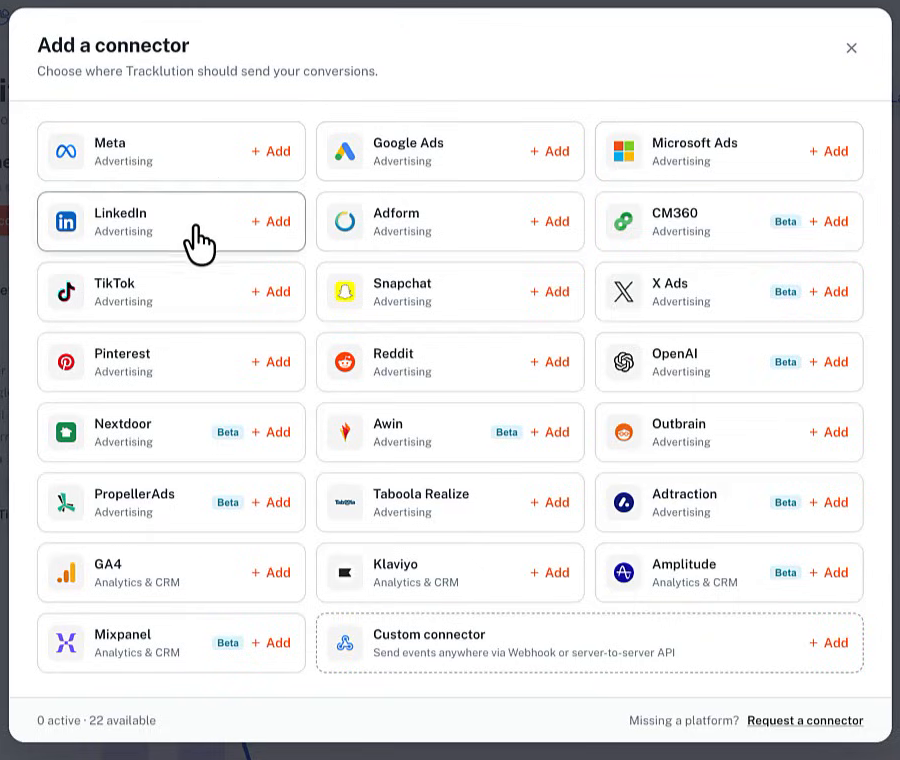
And because Tracklution handles the server-side connection, you get:
- Better data accuracy (no browser-based tracking issues)
- Improved match rates for your ad platforms
- One place to manage all your tracking
- No need for a dedicated measurement person doing day-to-day GTM maintenance
For teams without a technical measurement specialist, this is massive. Marketing managers can handle adding new ad platforms without touching GTM again.
Your Next Steps
Alright, here's what to do right now:
- If GTM isn't on your site yet: Install it using the method that fits your setup (plugin or manual code)
- Add the Tracklution template from the Community Gallery
- Set up your Page View tag with your Tracklution ID and domain
- Test in Preview mode to confirm events are firing
- Check your Tracklution dashboard to verify data is flowing
- Publish your GTM container
- Add your ad platform connectors in Tracklution (this is the fun part)
Installing on WooCommerce instead? I walk through the plugin setup in this video.
Ready to set it up? Start with Tracklution.
Good luck with your GTM tracking setup!